Face ID - Move your iPhone a little lower

I use Iphone 13 pro and from past 1 month my face id wasn’t working properly, sometimes my phone use to unlock but sometimes it didn’t. And when I reset my face id and try to make a new face id I can’t register my face id It keeps on saying move your phone little lower and no matter how much I put my phone lower it doesn’t works


[Re-Titled by Moderator]


iPhone 13 Pro, iOS 16

Posted on Nov 25, 2022 5:47 PM

Reply
Question marked as Top-ranking reply

Posted on Nov 27, 2022 1:40 PM

Hello sabin260,


Thanks for choosing the Apple Support Communities. We see Face ID isn't working on your iPhone. We suggest following these steps to try and resolve the issue.


If Face ID isn't working on your iPhone or iPad Pro - Apple Support


"Check for updates

Update your iPhone or iPad to the latest version of iOS or iPadOS. And make sure that your iPhone or iPad model supports Face ID.


Check your Face ID settings

To check your Face ID settings, go to Settings, then tap Face ID & Passcode. Make sure that Face ID is set up and that the features you're trying to use Face ID with are turned on.
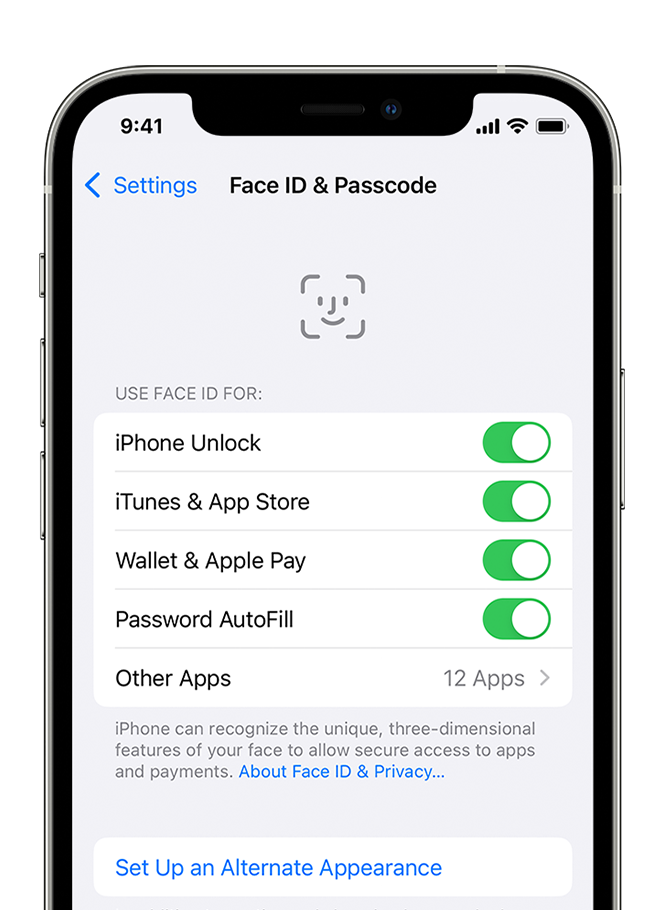
An iPhone showing the screen at Settings > Face ID & Passcode.Check that nothing is covering the TrueDepth camera

Remove anything that might be covering the TrueDepth camera like dirt, a case, or a screen protector.

If you're using an iPad in landscape orientation, make sure that your finger or palm isn't covering the TrueDepth camera. If it is, an alert might appear at the top of the screen that says "Camera covered" with an arrow pointing at the TrueDepth camera.
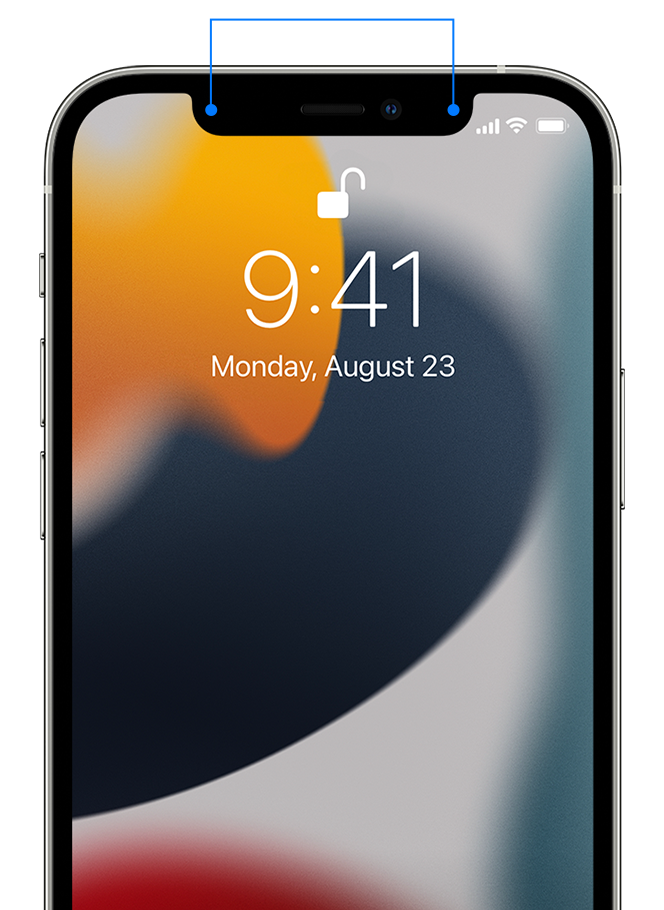

An iPhone with lines pointing to the TrueDepth camera, two spots at the top of screen, one on each side of the center notch.

Make sure that your face isn't blocked

Make sure that your eyes, nose, and mouth are fully visible to the TrueDepth camera. By default, Face ID doesn't work if anything is covering your mouth and nose. If you're wearing a face mask and have already set up Face ID with a mask,* make sure that your eyes aren't blocked. You might need to hold your iPhone higher if you're wearing a face mask. If you wear a face mask too high or too close to your eyes, your iPhone might not unlock.

Face ID works with many sunglasses, though Face ID with a mask isn't designed to work with sunglasses. If you're wearing sunglasses designed to block certain types of light, then your sunglasses might be blocking the infrared light used by the TrueDepth camera. Try using Face ID without your sunglasses.

* You can use Face ID with a mask on iPhone 12 and later using iOS 15.4 and later.


Make sure that you're facing the TrueDepth camera

Face ID works on iPhone only when it's in portrait orientation and you're facing the TrueDepth camera. On iPad, you can use Face ID when your iPad is in any orientation.

The TrueDepth camera has a similar range of view as when you take a selfie or make a FaceTime call. Whether your iPhone or iPad is lying on a surface or you're holding it in a natural position, make sure that your iPhone or iPad is an arm's length or closer (10-20 inches) from your face.


Restart your device

Restart your iPhone or iPad and enter your passcode. Then try using Face ID again.


Add an alternate appearance 

For most users, Face ID will continuously learn as they change. If you have an appearance that can look vastly different, you can set up an alternate appearance so Face ID still recognizes you.

To set up an alternate appearance:

  1. Go to Settings, then tap Face ID & Passcode. If asked, enter your passcode.
  2. Tap Set Up an Alternate Appearance.
  3. Look straight into your iPhone or iPad and place your face inside the frame.
  4. Gently move your head to complete the circle. If you're unable to move your head, tap Accessibility Options.
  5. When you finish the first Face ID scan, tap Continue.
  6. Gently move your head to complete the circle for a second time.
  7. When Face ID setup is complete, tap Done.


Reset Face ID

If you still need help, reset Face ID, then set it up again. Go to Settings, tap Face ID & Passcode, then tap Reset Face ID. Next tap Set up Face ID to set it up again.


Get service

If you still can't enroll your face, contact Apple Support.

Only a trained technician should service your device. Improper repair, modification, or use of nongenuine Apple components in the laser systems might prevent the safety mechanisms from functioning properly, and could cause hazardous exposure and injury to eyes or skin."


We hope this helps.


Cheers!


200 replies
Question marked as Top-ranking reply

Nov 27, 2022 1:40 PM in response to sabin260

Hello sabin260,


Thanks for choosing the Apple Support Communities. We see Face ID isn't working on your iPhone. We suggest following these steps to try and resolve the issue.


If Face ID isn't working on your iPhone or iPad Pro - Apple Support


"Check for updates

Update your iPhone or iPad to the latest version of iOS or iPadOS. And make sure that your iPhone or iPad model supports Face ID.


Check your Face ID settings

To check your Face ID settings, go to Settings, then tap Face ID & Passcode. Make sure that Face ID is set up and that the features you're trying to use Face ID with are turned on.

An iPhone showing the screen at Settings > Face ID & Passcode.Check that nothing is covering the TrueDepth camera

Remove anything that might be covering the TrueDepth camera like dirt, a case, or a screen protector.

If you're using an iPad in landscape orientation, make sure that your finger or palm isn't covering the TrueDepth camera. If it is, an alert might appear at the top of the screen that says "Camera covered" with an arrow pointing at the TrueDepth camera.


An iPhone with lines pointing to the TrueDepth camera, two spots at the top of screen, one on each side of the center notch.

Make sure that your face isn't blocked

Make sure that your eyes, nose, and mouth are fully visible to the TrueDepth camera. By default, Face ID doesn't work if anything is covering your mouth and nose. If you're wearing a face mask and have already set up Face ID with a mask,* make sure that your eyes aren't blocked. You might need to hold your iPhone higher if you're wearing a face mask. If you wear a face mask too high or too close to your eyes, your iPhone might not unlock.

Face ID works with many sunglasses, though Face ID with a mask isn't designed to work with sunglasses. If you're wearing sunglasses designed to block certain types of light, then your sunglasses might be blocking the infrared light used by the TrueDepth camera. Try using Face ID without your sunglasses.

* You can use Face ID with a mask on iPhone 12 and later using iOS 15.4 and later.


Make sure that you're facing the TrueDepth camera

Face ID works on iPhone only when it's in portrait orientation and you're facing the TrueDepth camera. On iPad, you can use Face ID when your iPad is in any orientation.

The TrueDepth camera has a similar range of view as when you take a selfie or make a FaceTime call. Whether your iPhone or iPad is lying on a surface or you're holding it in a natural position, make sure that your iPhone or iPad is an arm's length or closer (10-20 inches) from your face.


Restart your device

Restart your iPhone or iPad and enter your passcode. Then try using Face ID again.


Add an alternate appearance 

For most users, Face ID will continuously learn as they change. If you have an appearance that can look vastly different, you can set up an alternate appearance so Face ID still recognizes you.

To set up an alternate appearance:

  1. Go to Settings, then tap Face ID & Passcode. If asked, enter your passcode.
  2. Tap Set Up an Alternate Appearance.
  3. Look straight into your iPhone or iPad and place your face inside the frame.
  4. Gently move your head to complete the circle. If you're unable to move your head, tap Accessibility Options.
  5. When you finish the first Face ID scan, tap Continue.
  6. Gently move your head to complete the circle for a second time.
  7. When Face ID setup is complete, tap Done.


Reset Face ID

If you still need help, reset Face ID, then set it up again. Go to Settings, tap Face ID & Passcode, then tap Reset Face ID. Next tap Set up Face ID to set it up again.


Get service

If you still can't enroll your face, contact Apple Support.

Only a trained technician should service your device. Improper repair, modification, or use of nongenuine Apple components in the laser systems might prevent the safety mechanisms from functioning properly, and could cause hazardous exposure and injury to eyes or skin."


We hope this helps.


Cheers!


Jan 22, 2023 6:50 AM in response to sabin260

Mine was a hardware issue but hopefully yours isn’t.


Was having intermittent issues with FaceID (also started out of nowhere a few days ago). Luckily I live close to a few apple stores so brought it in - the tech ran a diagnostic and found an issue with the TrueDepth sensor on the front camera.


Was replaced within an hour with AppleCare for free, but it’ll set you back ~$250 without insurance.

Apr 14, 2023 11:22 PM in response to sabin260

Hey all,


I had this very same issue. After attempting various steps, including some mentioned here, I first reached out to Apple Support. The attempted to remote diagnose the issue but that didn’t show anything wrong.


After a few failed attempts of DIY troubleshooting I decided to drive to the closest authorized repair center. They hooked the phone up and moments later told me the True Depth module was not functioning properly. I the reached out to Apple again, using Support application and explained what I did in resolving the issue. They listened. Since I have Apple Care+ on my iPhone they worked with me on shipping a replacement device. A few days later, I’m up and running again.


So, you can stop sla…tapping your iPhone and take it to a repair center near you. Use the Support application to help you find one, if you don’t know it already.


hope this helps those that are having issues with their device.

Apr 28, 2023 11:22 PM in response to Lauren_dj

If it should fail you again and you cannot register, then take it to a genius bar and have them do a hardware diagnostics. My first diagnostics was done with Apple remote support, and they couldn’t find anything either. So I’m guessing at that particular moment, the hardware piece was working, but then, when I took it into the genius bar, they found that it was not working. So if you try to register or it’s acting up on you, then don’t slap it. Set up an appointment with the genius bar And then when you get there and be sure sure to try and use it. Hopefully it fails when you try to use it in there watching you do it then hopefully when they do a hardware test they can find something wrong with it. At that point that’s how I found I was having hardware issues.

Aug 30, 2023 1:08 PM in response to sabin260

I know this is late but it might help others. I saw another solution on another page that helped me— I removed my case (and it says your screen protector too) and wipe your camera front with a clean microfiber cloth.


It’s the depth receptors that aren’t registering and may be blocked by dirt or dust. And just like that, I could reset my Face ID! Spanking my phone didn’t work for me.

Apr 11, 2023 4:56 PM in response to sabin260

Same issue happened on my iPhone XS and when I removed the screen guard then it started working fine. So what happened that I dropped my phone and after that my face id stopped working and then I noticed one small bubble appeared on the top where I think the face id sensor is and that is what was blocking the face id to scan. Now it is working fine I had to replace my sceen gaurd with the new one.

Apr 17, 2023 9:09 AM in response to Adizayebine

You will find a few humorous solutions, slapping the phone one of them.


I had this problem for several weeks, I first used the Apple Support app and the support person remote mis-diagnosed my issue and told me nothing was wrong. Fail!


I drove to an authorized repair store and they correctly diagnosed that the True Depth module was having issues. Since I have Apple Care+ active, I then reached out to Apple and they cross shipped me an iPhone.


Anybody else reading this, please take your beloved device in and get her, mine is her by the way, looked at. Hopefully they will diagnose it as a True Depth issue. If you do, come back to this message and post your results along with estimated repair costs so others don’t have to muddle through the noise.

Apr 17, 2023 9:16 AM in response to lbriggs80

If you want a permanent fix, then take it to an authorized repair store.


Before doing so, find the Apple article for it not working. Clean the lenses area, restart device, all that. Then when you take it in, hopefully it acts up and the tech helping you see that it is not functioning properly. Also have them run diagnostics on it.


I took mine in, and they correctly diagnosed the issue. Remote support couldn’t find any thing wrong. Yet Face ID was not working.

May 9, 2023 8:53 AM in response to apl70

After slapping my phone, and being able to set up Faceid again, my apps stopped recognizing my face after I put on a magnetic phone cover! When I took off the magnetic phone cover my apps were able to recognize my face again. In fact, I believe once I got that phone cover with a magnet sticker, that is when my Faceid stopped working! When my Faceid couldn’t even be set up anymore. Yet the slap did help. So if any of you are having Faceid problems make sure to stop using a magnetic phone cover.

Jul 13, 2023 10:35 PM in response to apl70

I went through the diagnostic gauntlet. At the Apple the technician determined it was a faulty or malfunctioning true depth camera that creates the Facial ID. Many possible causes. They’d gladly repair it for a few hundred bucks. Fortunately I had device protection at Verizon and switched out my malfunctioning 13 max pro at no cost except for the monthly fee for the protection plan. New phone works great…. For now.

This thread has been closed by the system or the community team. You may vote for any posts you find helpful, or search the Community for additional answers.

Face ID - Move your iPhone a little lower

Welcome to Apple Support Community
A forum where Apple customers help each other with their products. Get started with your Apple Account.
