Apple Pencil Glitching

My pencil keeps glitching on Notability - drawing random lines and dots, like an electronic fountain pen spill. And it breaks up my writing.


I have the 2020 iPad 12.9 inch, and 2nd gen Apple Pencil


I've tried the following things:

  • getting a new Apple Pencil
  • restarting the iPad
  • reconnecting the Pencil
  • turning off other devices nearby (to try stop interference)
  • holding the metal side of the iPad while writing, to see if it was a grounding issue and also removing the case while writing
  • taking the iPad out the charger while writing


I've noticed it glitches mainly on Notability, however I don't use the other apps enough to be able to tell if its a Notability issue or a general one...


Very annoying! Anyone got any ideas? Side note, the iPad gets kind of warm with Notability - anyone else get this?


Thanks for the help!

iPad Pro 12.9-inch, 3rd Gen, Wi-Fi

Posted on Oct 7, 2020 5:10 AM

Reply
Question marked as Top-ranking reply

Posted on Feb 7, 2021 6:27 PM

I’ve spoken with apple technical support, they’re aware of the issue, though they didn’t have a ‘fix’ I was told to disable the pencil ‘click’ (to change from pen to eraser) and I haven’t had the issue since, it’s been two weeks now and I was having the issue almost every day before that change and did basically everything else possible before that weird solution. I haven’t turned the pencil click back on to check if it comes back out of fear of it not going away again ;) ;)

Similar questions

82 replies
Question marked as Top-ranking reply

Feb 7, 2021 6:27 PM in response to dd271

I’ve spoken with apple technical support, they’re aware of the issue, though they didn’t have a ‘fix’ I was told to disable the pencil ‘click’ (to change from pen to eraser) and I haven’t had the issue since, it’s been two weeks now and I was having the issue almost every day before that change and did basically everything else possible before that weird solution. I haven’t turned the pencil click back on to check if it comes back out of fear of it not going away again ;) ;)

Jun 2, 2021 11:03 PM in response to dd271

Hello,


I have had this issue and after replacing my iPad and Apple Pencil multiple times, I can proudly say I have solved this problem.

As others have posted, this issue is due to the ESD which causes the iPad to register false touches. It is to be noted that grounding yourself works but it's not that elegant of a solution. The ESD occurs at the rim of the iPad as shown below.

I have an 2020 iPad Pro 12.9 inch, without a screen protector or case. I've kept it on the magic folio keyboard.


The natural position of writing something would be to rest your hand on this rim, that is where we ground ourself and cause some ESD to release onto the screen.

The only comfortable way to prevent this is to keep your hand slightly raised above the edge as shown below. This is a natural writing position and is not uncomfortable. To facilitate this comfortably you have to keep the writing in the middle part of the iPad screen. Please refer to the images below.

This has been working for me since the past week. I can safely say this works. But if for some reason it is still not solving the glitch lines problem. I think you might need a humidifier or proper grounding or a lycra glove. The method listed above is the only free and easy method that I know of.


Thank you.

Dhruv

Jan 20, 2021 9:20 AM in response to 007c

007c wrote:

Finally issue resolved

this can happen due to a number of reasons like
1) dropping apple pencil
2)screen protector/paperlike
3) overly tight ipad case

But all this can build "static charge" on the ipad screen , so I here is what you need to do
Remove ipad case
Remove paper like/screen protector

Now try to use your ipad on a wooden table
You'll not experience that issue again

And if you intend to use it anywhere apart from the wooden table just place your index finger on your ipad sceen on the bezel and your thumb on the side metal

This will make sure that you'll not experience static charge on the ipad screen and there your pencil will work absolutely fine.

I have been using iPads in cases with no issues with the Apple Pencil or other third party, smart Bluetooth stylii.

As I have continually stated, a drawing/writing glove has mostly solved this issue for me.

The drawing gloves completely isolates the side of your hand/palm of your hand eliminating ANY body electrical impulse contact with the iPad screen.

This has worked for me for many years.

Jan 20, 2021 8:42 PM in response to dd271

So I was having an Apple Pencil glitch like the other on here, and specifically while using the notability app as well. I have also tried all the other methods and nothing worked. But after chatting with the Amazon support member (yes I know, odd lol) he told me to make sure the pencil tip was tightened all the way, meaning if the tip wasn’t twisted all the way then do so. And that was the issue I was having. My pencil has been working great since. Please try keeping hour pencil tip twisting that can cause the pencil to glitch. Hope this helps!

Apr 5, 2021 8:57 AM in response to emely168

Both 2018/2020 11 inch screen iPad Pros and the 10.5 inch screen 2019 iPad Air 3, the new 2020 10.9 inch screen iPad Air 4 models suffer from this issue, too!

As well as intermittent, unresponsive touch screen issues.

This is, also, seems to affect the older 2017, 10.5 and 12.9 inch screen iPad Pro models, too!

Also, this Pencil issues seems to affect both versions of the Pencil .


This Pencil glitching issues have been going on for quite sometime.

It maybe a software issue, but more and more, I feel that this is a combination of a software AND actual hardware issue, that Apple engineers have simply not been able to solve.


Both the touch screen issues, as well as the Pencil issues, which, again, I feel are both mutually related issues.


I implore everyone with ongoing Pencil issues and touch screen issues to contact Apple support via the contact support link located at the upper right hand corner of every Webpage of these Apple support communities.


Use the Device Performance and Connectivity support categories.


OR


by installing and using the Apple Support app found in the iOS App Store.


Tap the iOS App Store link below.


https://apps.apple.com/us/app/apple-support/id1130498044


Best of Luck to You!

Nov 30, 2020 6:05 AM in response to willtyler1

Hey,


yeah they said if it’s a display issue they’ll straight up replace it, as they can’t repair the internal screen part - they replaced it and I’ve had no further issues with the new one (touchwood)


one thing to note is that some cases (non Apple) might mess around with the magnetics and cause it to happen, so if you use a case maybe try without it


I doubt the mousepad under the iPad is generating static to cause the screen on top to bug out, but worth a try! Hope it gets fixed. Apple customer service are really good and quick so defo worth getting in touch

Jan 25, 2021 6:46 AM in response to MichelPM

Hi, I was in this thread pretty early on & my device (iPad Pro 2020 12.9 inch) suffers from this issue. I also happen to own one of the Lycra gloves you speak of, it makes no difference. In fact it makes it worse (see below).

This isn’t the palm rejection glitch, I can assure you of this.


Earlier in the thread, myself and someone else spoke of how this seems to be an issue of static electricity. If I touch my finger to the metal casing of the iPad whilst the issue is happening, the issue stops. Wearing the Lycra glove prevents your hand from touching the metal casing at all, and so worsens this issue.


the iPad Pro 12.9 is perhaps more perceptible to this issue since it is much larger and so it’s possible to write with your hand not touching the metal casing.


I’m reasonably certain this is a hardware issue with the iPad screen not grounding itself correctly to dissipate the static build up on the screen.

Oct 12, 2020 3:09 PM in response to dd271

Hey dd271,


Thanks for the update. One thing you can try is to reinstall iOS on the iPad and see if the issue persists.


Do you see the random dots and lines in a specific section of the screen?


How to back up your iPhone, iPad, and iPod touch


  1. "Make sure that your Mac is up to date. If you're using iTunes, make sure you have the latest version of iTunes
  2. On a Mac with macOS Catalina, open Finder. On a Mac with macOS Mojave or earlier, or on a PC, open iTunes. If iTunes is already open, close it, then open it again. Find out which macOS your Mac is using.
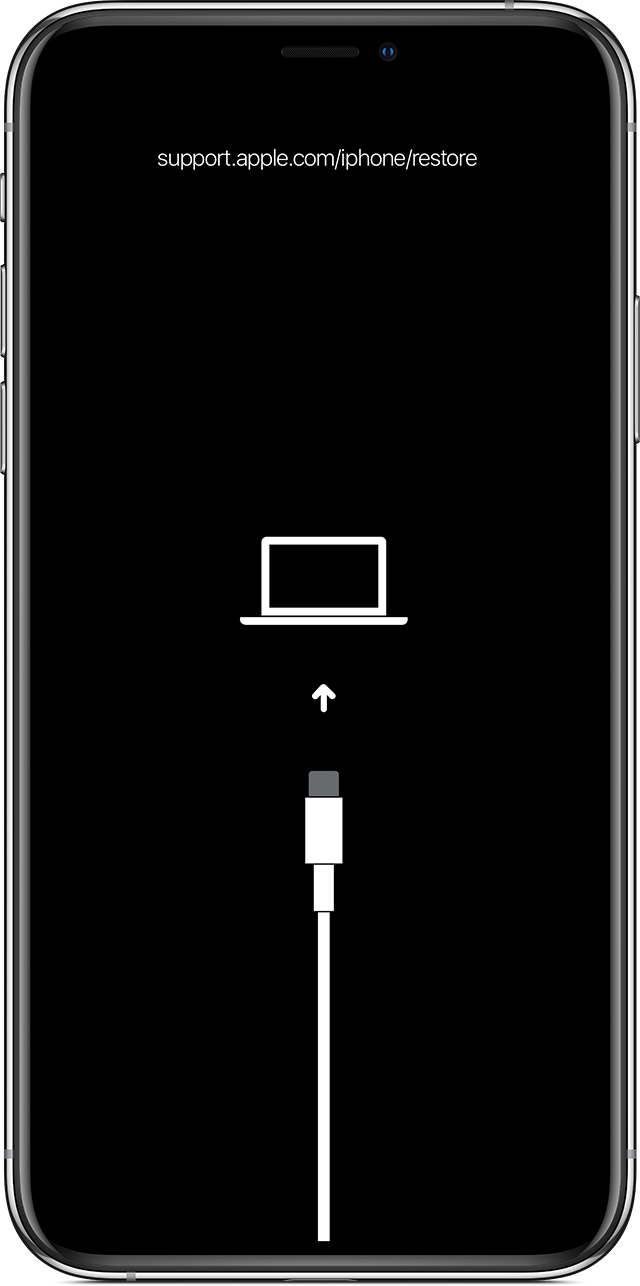
  3. Keep your device connected and wait until the recovery mode screen appears:
    • iPad models that don't have a Home button: Press and quickly release the Volume Up button. Press and quickly release the Volume Down button. Press and hold the Top button until your device begins to restart. Continue holding the Top button until your device goes into recovery mode.
    • iPhone 8 or later: Press and quickly release the Volume Up button. Press and quickly release the Volume Down button. Then, press and hold the Side button until you see the recovery mode screen.
    • iPhone 7, iPhone 7 Plus, and iPod touch (7th generation): Press and hold the Top (or Side) and Volume Down buttons at the same time. Keep holding them until you see the recovery mode screen.
  • iPad with Home button, iPhone 6s or earlier, and iPod touch (6th generation) or earlier: Press and hold both the Home and the Top (or Side) buttons at the same time. Keep holding them until you see the recovery mode screen.
  1. Locate your device on your computer. When you see the option to Restore or Update, choose Update. Your computer will try to reinstall the software without erasing your data. "


If you can't update or restore your iPhone, iPad, or iPod touch


Have a good one.

Dec 17, 2020 7:12 PM in response to dd271

This issue seems to have been around a while:

https://discussions.apple.com/thread/7622195 "Random Horizontal Apple Pencil Streaks" 2016


and is also mentioned here:

https://discussions.apple.com/thread/251936184


and on Notability's website since its users have been asking them if it is their fault:

https://support.gingerlabs.com/hc/en-us/articles/360054114791-Random-Lines-while-Writing-with-Apple-Pencil


Mine seems linked to the device being plugged in while using. I'm being told to do a full OS refresh by support before they help me since I was on the Beta.

Nov 30, 2020 7:40 AM in response to willtyler1

Hi,


no worries at all!


Glad I can help, honestly I was so upset/annoyed too but they’re really good and quick. I did start a chat with them online and they did some software checks and resetting (so they might get you to do the same) although I was pretty sure it was a mechanical display issue not a software one.


after doing all that and it was still bugging, they then booked me in to go into an Apple store and when I got there I explained the situation, they took the iPad in and mailed me a new one by the end of the week


probably easier to start a ticket online otherwise they’ll probably check all these things when you get to the store and it might take a while, easier to get it done before hand I reckon


just out of curiosity, are your diagonal lines really shaky too? And what app are you noticing this on the most?

Jan 2, 2021 8:48 AM in response to dd271

Finally issue resolved


this can happen due to a number of reasons like

1) dropping apple pencil

2)screen protector/paperlike

3) overly tight ipad case


But all this can build "static charge" on the ipad screen , so I here is what you need to do

Remove ipad case

Remove paper like/screen protector


Now try to use your ipad on a wooden table

You'll not experience that issue again


And if you intend to use it anywhere apart from the wooden table just place your index finger on your ipad sceen on the bezel and your thumb on the side metal


This will make sure that you'll not experience static charge on the ipad screen and there your pencil will work absolutely fine.

Jan 24, 2021 3:06 PM in response to Architect83

No digital, smart, Bluetooth stylus is perfect and neither is Apple's Pencil stylus.

All digital, smart Bluetooth stylii have some issues with screen palm rejection.

Even Apple's Pencil exhibits issues more frequently than not.


I will keep stating this until some or all of you try this.

Try using a special, lycra®-based material, body/hand electrical impulse isolating drawing/writing glove.

Something like this found on Amazon.

https://www.amazon.com/Professional-Anti-fouling-Drawing-Tablet-Graphic-Right-Ha nd-Left-Hand/dp/B017R8M2JY/ref=sr_1https://www.amazon.com/Professional-Anti-fouling-Drawing-Tablet-Graphic-Right-Ha


Many more makers of these types of gloves found on Amazon and in different hand sizes and limited colors, as well!

They will also work for either right or left handed users.


I have been using tablet drawing/writing gloves for years. They are inexpensive and they work and almost eliminate all palm rejection and stray mark issues.

An additional plus of a drawing/writing glove as it makes it easier for your hand/side of your hand to more easily glide across the iPad's screen as your hand/palm/side of your hand won't stick to the iPad's glass screen or leave skin oil marks while using ANY stylus.


I wish some of with this issue would just simply purchase one of these drawing/writing gloves and try it with your Apple Pencil.


Good Luck to All!

This thread has been closed by the system or the community team. You may vote for any posts you find helpful, or search the Community for additional answers.

Apple Pencil Glitching

Welcome to Apple Support Community
A forum where Apple customers help each other with their products. Get started with your Apple Account.